
Support & Guides
Vitalograph Spirometer
Breathe RM connects to a variety of spirometers to seamlessly capture your lung function data. The setup guide below will walk you through setting up a Vitalograph Bluetooth spirometer. If you're using a different spirometer, please return to the guides overview.


Step 1
Setting up your Vitalograph
Before starting, make sure that your phone has Bluetooth turned on. Turn on the spirometer device too. Open the Breathe app and click the ‘Settings’ cog in the top right hand corner. Then, in the ‘My Devices’ section, tap on ‘Spirometry”

Step 2
Getting Started
Select Vitalograph Lung Monitor from the list

Step 3
Permissions
Breathe may ask for permission to use your Bluetooth or location. Don’t worry – no information on your whereabouts is captured or stored, but this permission is required for connecting to certain Bluetooth devices. Tap ‘OK’ to carry on.

Step 4
Connect
Device search will begin, once a Spirometer has been found, the device(s) will appear in the list. Tap to connect

Step 5
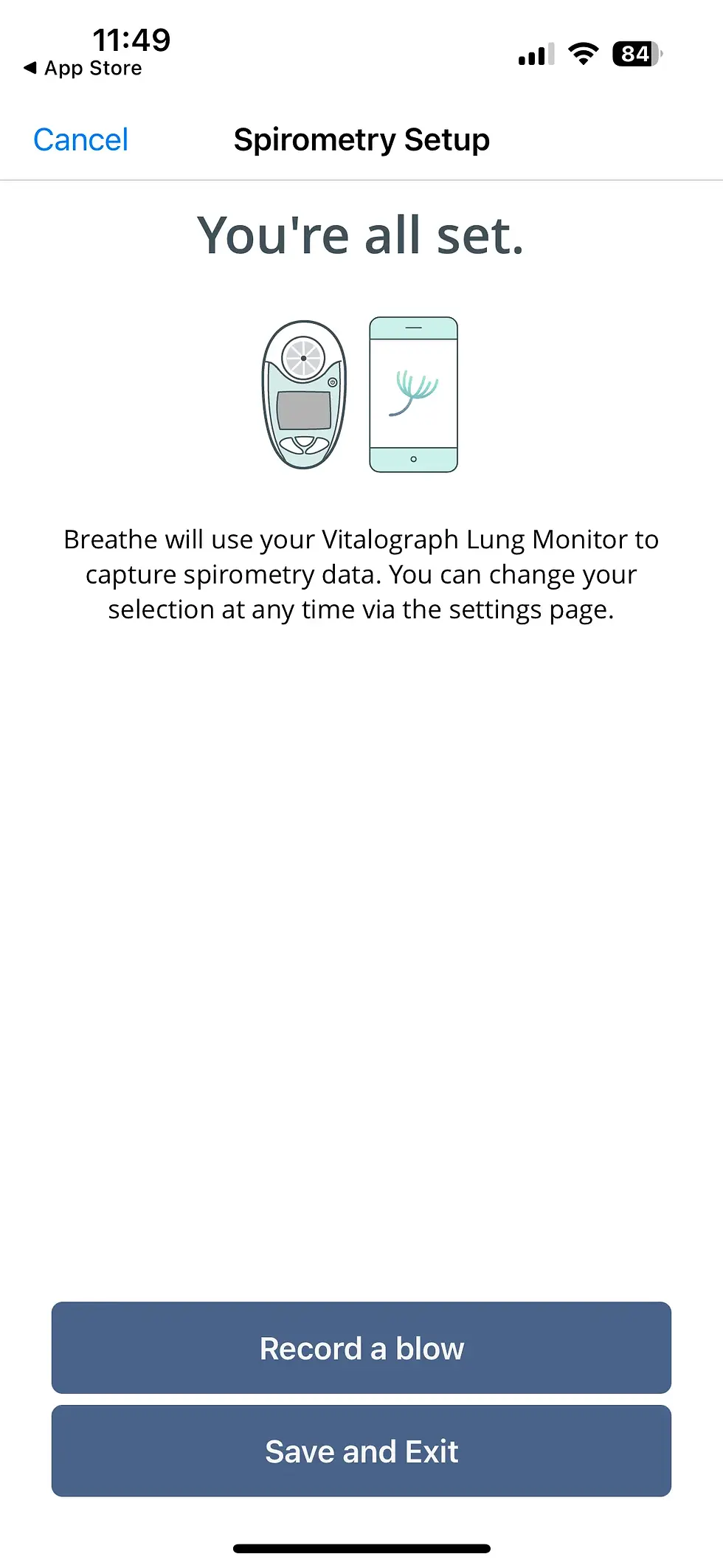
Set up complete
That’s it! Either go ahead and record a blow straight away or save and exit.
Step 6
Spirometer saved
When you return to ‘Settings’ you should see your spirometer in the list of devices.

Step 7

Step 8
Step 9
Step 10
Step 11
Step 12
Step 13
Step 14
Step 15
Frequently Asked Questions
Why does Breathe RM app keep aking me to sign in?
Breathe RM is no longer being actively supported.
From 4 March 2026, we will:
• Stop issuing software updates
• Stop providing technical support
• Disable data synchronisation between the app and our secure servers
• Begin removing the app from sale and download from the app stores
If you already have the Breathe RM app installed on your device, you may continue to use it locally for personal reference.
To help the app continue working on your device, please disconnect your Breathe account in the app settings. Any accounts still connected on 20 March 2026 will be disconnected by Magic Bullet.
Step 16
